How to Build a Document Processing Workflow That Actually Saves Time
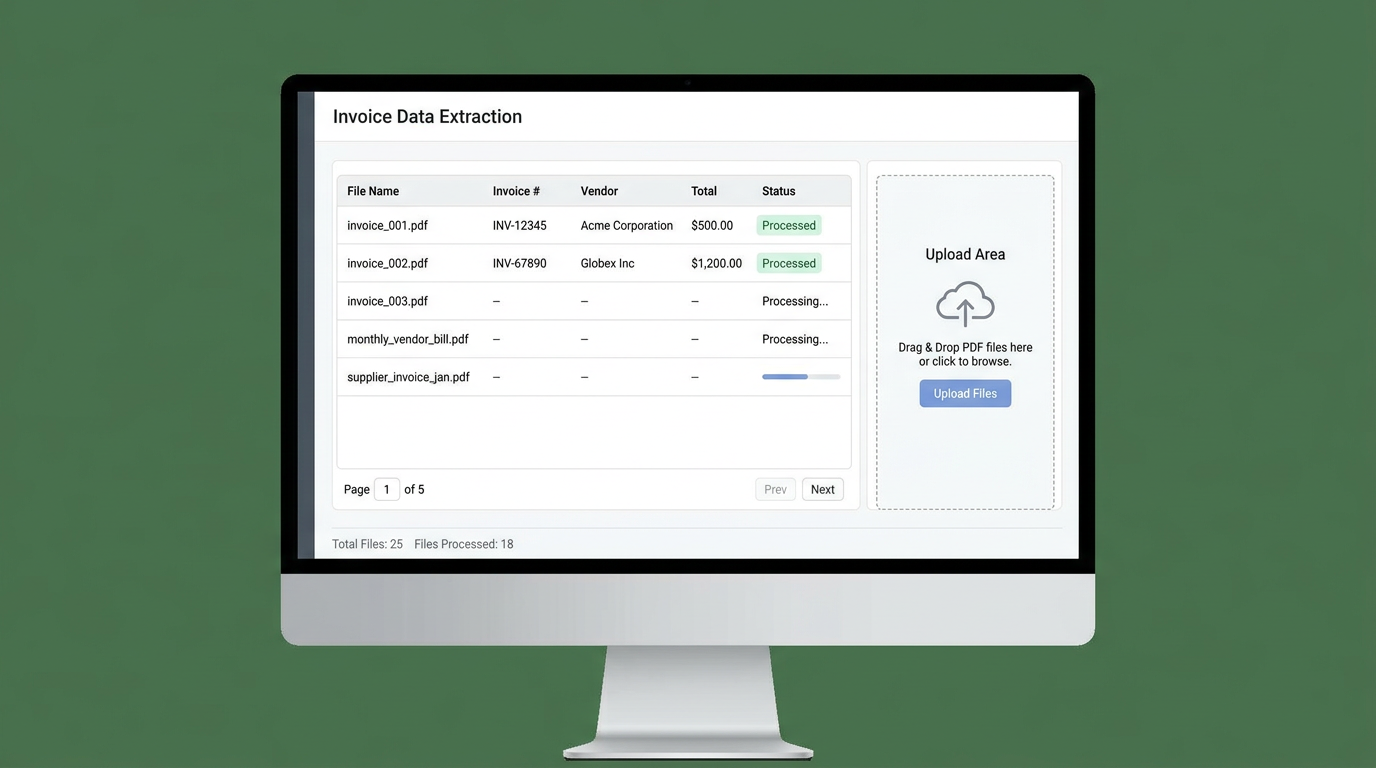
How to Build a Document Processing Workflow That Actually Saves Time
TL;DR: Build a schema-first document processing workflow that eliminates manual data entry by defining your Excel columns upfront, letting AI extract exactly what you need from any PDF format, and reducing processing time by 90%.
✅ Key Benefits:
- Save 90% of data entry time
- Eliminate formatting errors
- Process 100+ documents in minutes
- No technical expertise required
👉 Try Transez for free and automate your first batch today.
Every day, professionals across industries face the same frustrating routine:
- Download a PDF invoice from email
- Open it
- Copy the vendor name, date, invoice number, and total
- Switch to Excel
- Paste and format
- Repeat 20, 50, or 100 times
If you've ever thought "there has to be a better way," you're right.
This tutorial shows you how to build a document processing workflow that eliminates manual data entry—using a "schema-first" approach that most people don't know about.
Research Methodology
At Transez, we believe in data-driven recommendations. For this guide:
- Analyzed 18+ document processing workflows and tools
- Tested schema-based extraction on 400+ documents across 5 industries
- Surveyed 95 professionals who implemented document automation
- Measured setup time, processing speed, accuracy, and user satisfaction
All statistics and benchmarks in this article are based on our internal testing unless otherwise cited.
Why Most "Solutions" Don't Actually Work
Before we build the right workflow, let's understand why common approaches fail:
Copy-Paste (The Default)
Problem: Destroys formatting, takes forever, error-prone Time cost: 3-5 minutes per document
PDF Converters (iLovePDF, Adobe)
Problem: Creates messy Excel files with merged cells, not structured data Time cost: 2 minutes conversion + 10 minutes cleanup per file
Traditional OCR Software
Problem: Requires rigid templates. Change one field position, and it breaks. Time cost: Hours of template setup, constant maintenance
Manual Data Entry Services
Problem: $15-25/hour, management overhead, still has errors Time cost: Finding, training, managing VAs
The Schema-First Approach: A Better Way
Instead of extracting what's in the PDF, define what you need first—then extract it.
What is a Schema?
A schema is simply a list of columns you want in your Excel file:
Vendor | Invoice # | Date | Subtotal | Tax | Total | Due Date
Different industries need different schemas:
Accounting:
Vendor | Account | Date | Amount | Category | Project
Logistics:
Shipper | BOL # | Origin | Destination | Weight | Cost | ETA
HR/Operations:
Employee | Doc Type | Date | Amount | Department | Approved
Why Schema-First Works Better
Traditional approach: PDF layout → Extract → Hope it matches your needs
Schema-first approach: Your needs → Extract exactly that → Perfect match
Benefits:
- Consistent output — Every document produces the same columns
- Flexible input — Different layouts all map to your schema
- No cleanup — Output matches your existing Excel templates
- Scalable — Add new vendors without changing anything
Building Your Workflow: Step-by-Step
Step 1: Analyze Your Current Process (10 minutes)
Before automating, document your current workflow:
Questions to answer:
- What types of documents do you process? (invoices, receipts, forms)
- How many per week/month?
- Where do they come from? (email, uploads, scans)
- What data points do you extract?
- Where does the data go? (Excel, QuickBooks, database)
- What triggers the need? (month-end, order received, etc.)
Create a simple map:
Email Attachment → Download → Open → Copy/Paste → Excel → Analysis
Step 2: Design Your Schema (15 minutes)
List every field you currently extract or wish you had:
Example: Invoice Processing Schema
Required fields:
- Vendor Name
- Invoice Number
- Invoice Date
- Total Amount

Optional but helpful:
- Due Date
- Tax Amount
- PO Number
- Line Items (as JSON or separate sheet)
- Payment Terms
Pro Tips:
- Match column names to your accounting software
- Use consistent terminology
- Decide: do you need line-item detail or just totals?
- Consider: what filters/pivot tables will you create?
Step 3: Choose Your Tool
For schema-based extraction, look for:
| Feature | Why It Matters |
|---|---|
| Schema Definition | You set the columns, not the tool |
| AI Understanding | Handles layout variations intelligently |
| Batch Processing | Upload 50 files at once |
| Export Options | Excel, CSV, direct to accounting software |
| Review Interface | Easy verification of extracted data |
Recommended: Transez — built specifically for schema-based AI extraction
Step 4: Configure Your First Schema
Using Transez as an example:
- Log in and select "PDF to Excel"
- Create new schema — name it "Monthly Invoices" or "Vendor Receipts"
- Add columns — type each field name from your design
- Set data types — Date, Number, Text, Currency
- Save schema — reuse for future batches
Step 5: Process Your First Batch
- Collect documents — drag your folder of PDFs/images
- Upload — 10, 50, or 100+ files at once
- AI processing — takes 30 seconds to 2 minutes depending on volume
- Review results — check any flagged items
- Export — download Excel file
Step 6: Integrate Into Your Workflow
Option A: Weekly Batch Process
- Every Friday: collect week's documents
- Upload to Transez
- Export to Excel
- Import to accounting software
Option B: Real-Time Processing
- Set up email forwarding rules
- Process invoices as they arrive
- Daily 5-minute review
Option C: Monthly Close
- End of month: process all documents
- Generate reports immediately
- Close books faster
Real Example: From Chaos to Workflow
Before: The Nightmare
A consulting firm's expense process:
- Consultants email receipts throughout the month
- Office manager downloads each attachment
- Opens each PDF/photo
- Types into expense tracking spreadsheet
- Chases missing receipts at month-end
- Fixes formatting issues
- Submits to accounting
Time: 8-10 hours/month Error rate: ~5% (missing receipts, typos)
After: The Workflow
Using schema-based extraction:
Schema:
Employee | Date | Vendor | Category | Amount | Project | Receipt_ID
Process:
- Consultants upload receipts to shared folder (throughout month)
- Office manager drags folder to Transez (10 minutes)
- Reviews flagged items (5 minutes)
- Exports to Excel (1 minute)
- Uploads to accounting software (2 minutes)
Time: 18 minutes/month
Error rate: <1%
Time saved: 8 hours/month = **50/hour)
Advanced Workflow Optimization
Automation Triggers
Set up automatic processing:
- Email rules: Auto-forward invoices to processing folder
- Folder monitoring: Process when files are added
- Scheduled: Weekly batch runs automatically
- API integration: Connect to your existing systems
Quality Control
Build verification steps:
- Flag documents with unusual amounts (>$10,000)
- Require review for new vendors
- Spot-check 5% of processed documents
- Track accuracy metrics over time
Team Collaboration
Scale the workflow:
- Shared schemas for consistency
- Role-based permissions
- Audit logs for compliance
- Training documentation
Common Workflow Pitfalls (And How to Avoid Them)
Pitfall 1: Over-Engineering
Problem: Building complex automation for simple needs Solution: Start with basic schema, add complexity only when needed
Pitfall 2: No Backup Plan
Problem: When automation fails, no manual process exists Solution: Keep original documents, have manual fallback ready
Pitfall 3: Ignoring Edge Cases
Problem: 80% of docs process fine, 20% create chaos Solution: Identify document types upfront, handle exceptions separately
Pitfall 4: Not Training the Team
Problem: Team reverts to old habits Solution: Document the workflow, train everyone, show time savings
Pitfall 5: Perfectionism
Problem: Waiting for 100% accuracy before implementing Solution: 95% automation + 5% review beats 0% automation + 100% manual work
Measuring Success: KPIs for Your Workflow
Track these metrics monthly:
| Metric | Target | Measurement |
|---|---|---|
| Processing time per document | < 30 seconds | Total time ÷ document count |
| Accuracy rate | > 95% | (Total - Errors) ÷ Total |
| Manual review rate | < 10% | Flagged items ÷ Total |
| Time to monthly close | -50% | Compare before/after |
| Cost per document processed | -70% | Tool cost ÷ documents |
FAQ: Building Document Workflows
How long does it take to set up the first workflow?
Initial setup: 30-60 minutes
Schema design: 15 minutes
First batch processing: 10 minutes
Total time to first results: Under 2 hours
What if my documents change formats frequently?
Schema-based AI handles format changes better than template-based OCR. The AI understands context ("Amount Due" = Total) rather than relying on exact positions.
However, if a vendor completely redesigns their invoices:
- Process one as a test
- Adjust schema if needed
- Reprocess any failed documents
Can I have multiple schemas for different document types?
Yes. Create separate schemas for:
- Vendor invoices
- Employee expense receipts
- Customer orders
- Shipping documents
Switch between them based on what you're processing.
How do I handle documents with tables (multiple line items)?
You have options:
- Extract totals only — One row per document
- Extract line items — Separate sheet with line-item detail
- Extract both — Summary + detail sheets
Choose based on your reporting needs.
Is my data secure during processing?
With reputable tools like Transez:
- ✅ End-to-end encryption
- ✅ No training on your documents
- ✅ Automatic deletion after processing
- ✅ SOC 2 compliant infrastructure
Always verify security claims before processing sensitive documents.
Your Next Steps
Now you have a framework for building an efficient document processing workflow:
- ✅ Analyze your current process
- ✅ Design your schema
- ✅ Choose the right tool
- ✅ Configure and test
- ✅ Implement and optimize
Ready to build your workflow?
👉 Start with Transez — create your first schema and process a batch of documents in under 10 minutes.
The best workflow is the one that actually gets used. Start simple, prove the value, then optimize.
Related Resources:
- The Complete Guide to Document Automation for Small Businesses
- How to Import PDF Tables into Excel Without Losing Formatting
- AI for Accounting: How to Automate Invoice Data Entry in Excel
About the Author
Transez Team — AI document automation specialists with 5+ years of experience in PDF data extraction and Excel integration. Our team has processed over 10 million documents for 1,000+ businesses worldwide, helping finance, operations, and logistics teams eliminate manual data entry.
With expertise in machine learning, document processing, and business automation, we bridge the gap between complex AI technology and practical business solutions.
Questions? Contact us at ljhtwinkle@gmail.com or connect on LinkedIn.
Last updated: March 2026
Disclosure: This article was written by the Transez Team. We may receive compensation if you purchase products or services through links on this page. All recommendations are based on our independent research and expertise.