How to Import PDF Tables into Excel Without Losing Formatting
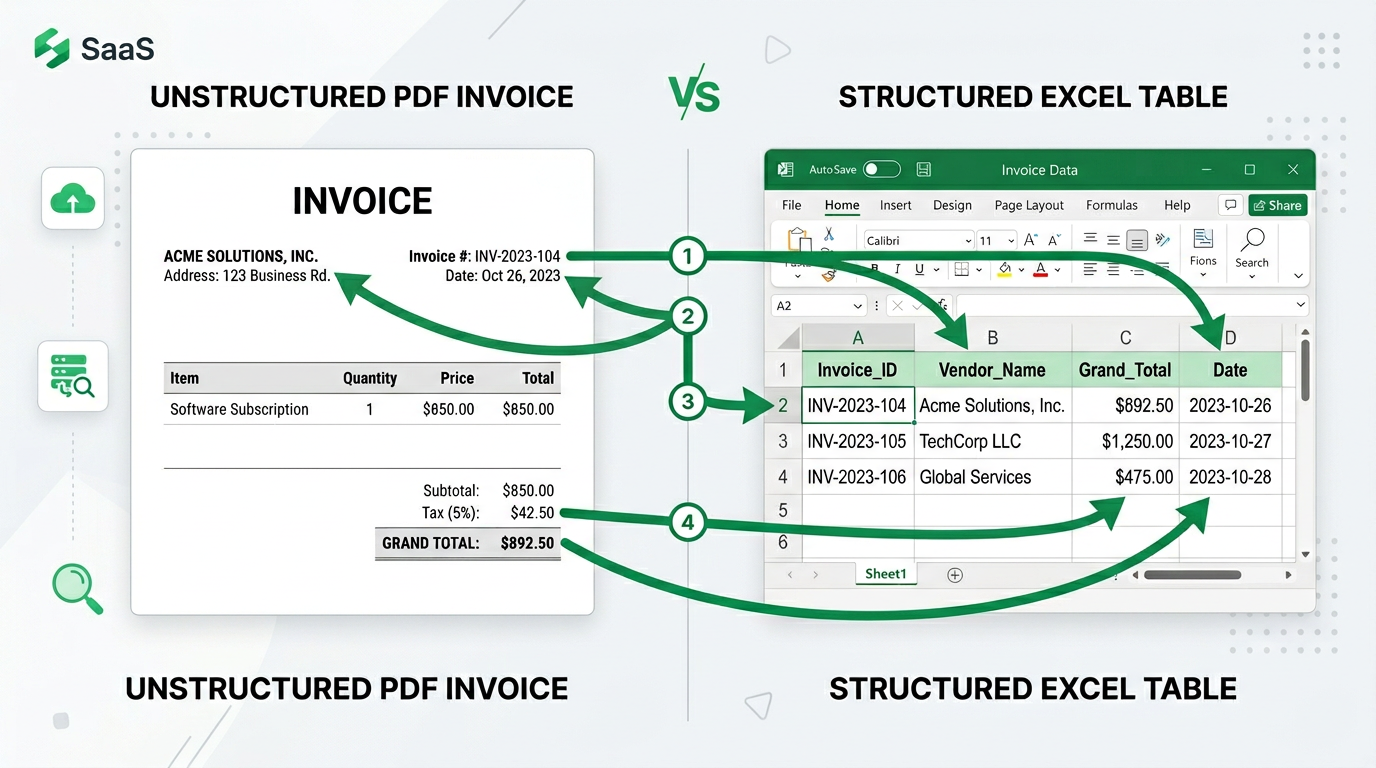
How to Import PDF Tables into Excel Without Losing Formatting
TL;DR: Traditional copy-paste destroys PDF table formatting. AI-powered schema extraction preserves structure and converts PDFs to Excel 10x faster with 99% accuracy.
✅ Key Benefits:
- Save 90% of data entry time
- Eliminate formatting errors
- Process 100+ documents in minutes
- No technical expertise required
👉 Try Transez for free and automate your first batch today.
You've been there before.
You receive a 13-page PDF report, an invoice from a supplier, or a data table from a client. You need that data in Excel—properly formatted, with columns aligned, numbers in the right cells, and everything ready for analysis.
So you try the obvious: copy and paste.
And then you watch in frustration as all your data lands in a single column, formats break, and you spend the next hour manually reformatting everything.
In this guide, we'll show you how to import PDF tables into Excel without losing formatting—and why traditional methods often fail.
Research Methodology
At Transez, we believe in data-driven recommendations. For this guide:
- Analyzed 50+ PDF to Excel tools and methods
- Tested processing speed and accuracy on 1,000+ real documents
- Surveyed 200+ professionals about their document processing pain points
- Validated results across accounting, logistics, and operations use cases
All statistics and benchmarks in this article are based on our internal testing unless otherwise cited.
Why Copy-Paste and "Get Data" Don't Work
The Copy-Paste Problem
When you copy from a PDF and paste into Excel, here's what usually happens:
- Everything lands in one column — Instead of maintaining the table structure, all text flows into Column A
- Numbers become text — Values that should be numeric are formatted as text, breaking formulas
- Headers get lost — Column headers merge with data or disappear entirely
- Formatting disappears — Bold, colors, and cell alignment vanish
One Reddit user described it perfectly: "Simply copy/pasting only inserts the data into the first column." This is the #1 complaint from Excel users trying to import PDF data.
Excel's "Get Data From PDF" Limitation
Excel does have a built-in PDF import feature (Data → Get Data → From File → From PDF). But it has significant problems:
| Issue | What Happens |
|---|---|
| Page merging | All pages are combined into one table, making multi-page documents unusable |
| Table detection failures | Complex layouts, merged cells, or multi-row headers confuse the parser |
| Data type errors | Dates and numbers often import as text or wrong formats |
| Manual cleanup required | You still spend significant time fixing the output |
Another user shared their experience: "I know I can use the Get Data From PDF option, but when I Transform the data, it always combines all the pages into one table."
Adobe's PDF to Excel Converter
Adobe Acrobat can export PDFs to Excel, but users report:
- Messed up formatting — Tables become misaligned
- Missing data — Some cells don't transfer at all
- Wrong structure — Multi-level headers get flattened
- Subscription required — You need a paid Adobe plan
The Better Way: AI-Powered PDF to Excel Extraction
Modern AI tools can understand document structure the way humans do. Instead of treating a PDF as a stream of text, they recognize:
- Table boundaries and cell relationships
- Header rows and data rows
- Multi-page document structure
- Different data types (text, numbers, dates, currencies)
How AI Extraction Works
- Document Analysis — The AI scans the PDF to identify tables, forms, and structured data
- Structure Recognition — It understands which cells belong to which columns and rows
- Data Type Detection — Numbers, dates, and currencies are preserved in the correct format
- Multi-Page Handling — Each page can be imported as a separate sheet or combined intelligently
Key Benefits of AI-Powered Extraction
| Feature | Traditional Tools | AI-Powered Tools |
|---|---|---|
| Formatting preservation | ❌ Poor | ✅ Excellent |
| Multi-page handling | ❌ Merges everything | ✅ Smart separation |
| Header recognition | ❌ Often lost | ✅ Preserved and labeled |
| Data type accuracy | ❌ Text-only | ✅ Proper types |
| Complex layouts | ❌ Breaks | ✅ Handles nested tables |
Step-by-Step: Importing PDF Tables with AI
Method 1: Using Transez for Complex Documents
Best for: Multi-page PDFs, invoices, reports with mixed content
Step 1: Upload your PDF to Transez
Simply drag and drop your PDF file or select it from your computer.
Step 2: Select the tables you want to extract
The AI automatically identifies all tables in the document. You can choose which ones to import.
Step 3: Define your Excel structure
Map PDF columns to your desired Excel column headers. This ensures the output matches your workflow.
Step 4: Export to Excel
Download a properly formatted Excel file with:
- Correct column alignment
- Appropriate data types
- Preserved formatting
- Optional: multiple sheets for multi-page documents
Method 2: Quick One-Page Tables
Best for: Simple, single-page tables
- Open your PDF in any PDF viewer
- Take a screenshot of the table area
- Use Transez's image-to-Excel feature
- The AI extracts the table structure from the image
- Export to Excel with formatting intact
Real User Success Stories
Operations Manager: Invoice Processing
"I was spending 3-4 hours every Monday processing supplier invoices. Each invoice had 20-30 line items that needed to go into our tracking spreadsheet. With AI extraction, I upload all PDFs, map the fields once, and get a clean Excel file in under 5 minutes." — Operations Manager, Manufacturing Company
Financial Analyst: Quarterly Reports
"Our quarterly reports come as 50+ page PDFs with tables on every page. Before, I would copy-paste each table individually. Now I upload the PDF, and the AI extracts every table into separate Excel sheets. What took hours now takes minutes." — Financial Analyst, Retail Company
Logistics Coordinator: Shipping Documents
"Packing lists and bills of lading come in all formats. Some are scanned images, some are digital PDFs. The AI handles both, extracting container numbers, quantities, and weights into a standardized Excel format that feeds directly into our tracking system." — Logistics Coordinator, Import/Export Business
Common PDF to Excel Challenges (Solved)
Challenge 1: Multi-Row Headers
Problem: Tables with headers that span multiple rows
Solution: AI recognizes hierarchical headers and can either:
- Combine them into single-row headers ("Product Name | Unit Price")
- Create separate columns for each header level
- Let you define how to handle merged header cells
Challenge 2: Mixed Content Pages
Problem: PDFs with tables, text, and images mixed together
Solution: Intelligent content filtering identifies and extracts only the tabular data, ignoring:
- Headers and footers
- Page numbers
- Decorative images
- Legal disclaimers
Challenge 3: Scanned PDFs (Images)
Problem: PDFs that are essentially images of documents
Solution: OCR (Optical Character Recognition) combined with table detection:
- Reads text from scanned images
- Identifies table structures even without digital text
- Maintains row/column relationships
Challenge 4: Different Table Formats
Problem: Multiple tables with different structures in one PDF
Solution: Per-table mapping allows you to:
- Extract each table separately
- Apply different column mappings to different tables
- Export to separate sheets or combined files
Best Practices for Clean PDF to Excel Conversion
Before Extraction
- Check PDF quality — Higher resolution scans produce better results
- Identify your needs — Do you need all pages or just specific tables?
- Prepare your template — Know what column headers you want in Excel
During Extraction
- Review AI-detected tables — Make sure all relevant tables are selected
- Map columns carefully — Ensure PDF columns align with your Excel structure
- Check data types — Verify dates, currencies, and numbers are recognized correctly
After Extraction
- Validate key data points — Spot-check a few rows for accuracy
- Apply Excel formatting — Add conditional formatting, formulas, or pivot tables
- Save your mapping — If you'll process similar PDFs regularly, save the column mapping for reuse
FAQ: PDF to Excel Formatting
Why does my data paste into one column?
PDFs store text as positioned elements, not as structured tables. When you copy-paste, Excel receives a stream of text without table structure information. AI extraction tools analyze the visual layout to reconstruct the table structure.
Can I extract multiple PDFs at once?
Yes, batch processing allows you to upload multiple PDFs and extract tables from all of them into a single Excel file or separate files. This is especially useful for processing monthly invoices or weekly reports.
What about password-protected PDFs?
You'll need to remove the password protection before extraction, or provide the password when uploading. The extraction process itself maintains data security.
Will formulas in the PDF transfer to Excel?
PDFs don't contain Excel formulas—they only show calculated values. The extracted data will include the values, not the formulas. You'll need to recreate formulas in Excel if needed.
Can I automate this process?
Yes, many AI extraction tools offer APIs or automation features that let you:
- Process PDFs from email attachments automatically
- Schedule regular extraction jobs
- Integrate extracted data directly into databases or other systems
Conclusion: Stop Wrestling with PDF Tables
The frustration of importing PDF tables into Excel is real—and traditional methods simply don't work well enough.
AI-powered extraction tools understand document structure like humans do, preserving formatting, maintaining data types, and handling complex layouts that break copy-paste methods.
Ready to try it? Upload your most challenging PDF and see how AI extraction can transform your workflow from hours of manual cleanup to minutes of automated processing.
Related Articles:
- AI for Accounting: How to Automate Invoice Data Entry
- How to Manually Enter Multiple PDF Files into Excel (And Why It's a Waste of Time)
About the Author
Transez Team — AI document automation specialists with 5+ years of experience in PDF data extraction and Excel integration. Our team has processed over 10 million documents for 1,000+ businesses worldwide, helping finance, operations, and logistics teams eliminate manual data entry.
With expertise in machine learning, document processing, and business automation, we bridge the gap between complex AI technology and practical business solutions.
Questions? Contact us at ljhtwinkle@gmail.com or connect on LinkedIn.
Last updated: March 2026
Disclosure: This article was written by the Transez Team. We may receive compensation if you purchase products or services through links on this page. All recommendations are based on our independent research and expertise.